In this article, we will see how we can send a link in a push notification, and that when pressing that notification, it opens the link in the browser.
# Previously
We will start from what was seen in the tutorial on How to send Push Notifications:
Suggested Tutorial
Send push notifications on AndroidWe will use the same code we developed for that article.
# Types of notifications
The first thing is to understand the types of notifications, which are two, and have to do with the way Android handles reception:
Notification
Handled by Android automatically when the app is in background.
If it's in foreground, onMessageReceived is used.
Data
Always handled by onMessageReceived. It's not visible
automatically; we must draw it, allowing us to add additional properties and behavior.
For this example, we are going to add a field to the notification, the linkURL field. Upon receiving it, we will tell it
that when pressed, it should open the
browser with that value.
# Intent
We will use an Intent, a messaging object that allows requesting actions from other components, such as opening the browser.
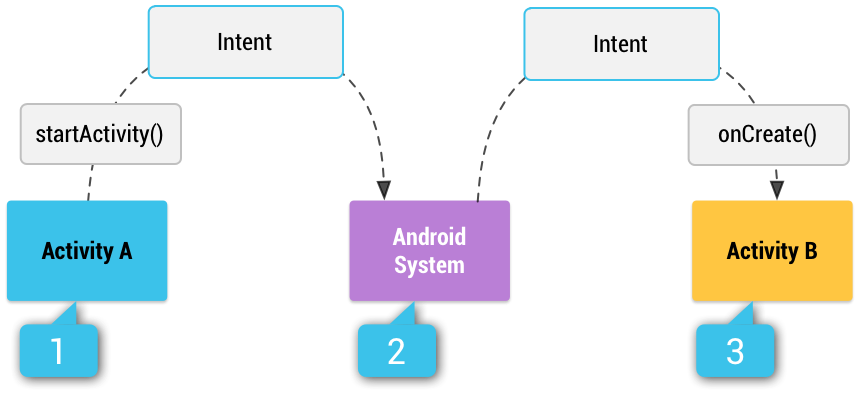
Source: developer.android.com
This intent cannot be assigned to the automatic notification type; we must use the data type to dyamically customize it.
# Backend Server
We modify the enviarNotificacion.php file to
receive the
LINKURL field and send it in the data block of the JSON.
$datos["title"] = $titulo;
$datos["body"] = $mensaje;

if (isset($_POST['LINKURL'])) {
    $datos["linkurl"] = $_POST['LINKURL'];
}

$fields = array(
    'registration_ids' => $registration_ids,
    'data' => $datos,
    'direct_book_ok' => true
);
# Android Application
In the application, we draw the notification and add a PendingIntent to open the browser.
@Override
public void onMessageReceived(@NonNull RemoteMessage message) {
    String titulo = message.getData().get("title");
    String descripcion = message.getData().get("body");
    String linkUrl = message.getData().get("linkurl");

    NotificationManager notificationManager = (NotificationManager) getSystemService(Context.NOTIFICATION_SERVICE);

    NotificationCompat.Builder notificationBuilder = new NotificationCompat.Builder(this, NOTIFICATION_CHANNEL_ID)
        .setContentTitle(titulo)
        .setContentText(descripcion)
        .setAutoCancel(true)
        .setSmallIcon(R.drawable.ic_launcher_foreground)
        .setContentIntent(onClick(linkUrl));

    notificationManager.notify(0, notificationBuilder.build());
}
Open Browser
private PendingIntent onClickAbrirNavegador(String linkUrl) {
    Intent intent = new Intent(Intent.ACTION_VIEW);
    intent.setData(Uri.parse(linkUrl));
    return PendingIntent.getActivity(this, 0, intent, PendingIntent.FLAG_IMMUTABLE);
}
# Complete Code
You can download the complete code from this repository: https://github.com/unsimpledev/ProyectoNotificacionesLink